
Use Bottleneck Calculator | Optimize CPU, GPU, & RAM of PC
0-10%: Excellent balance, optimal performance
10-20%: Good balance, minor bottleneck
20-30%: Noticeable bottleneck, upgrade recommended
30%+: Significant bottleneck, upgrade needed
Press Ctrl + Shift + Esc to open Task Manager, then go to the Performance tab. There you’ll find your CPU, RAM, and GPU details.
To check screen resolution: Right-click desktop → Display settings.
Sometimes our biggest frustration with a laptop or computer is not knowing why it feels slow. Is there any issue with the graphics card, processor, or something else? To tackle these issues, we look for a way, and that’s where our bottleneck calculator comes in. It works like a quick health check for your PC, showing if its CPU (processor) and GPU (graphics card) are balanced or not. This tool first identifies the bottleneck and helps us understand where the lags are happening.
With this, you don’t need to waste your money on the wrong parts. You just need to enter your PC’s specs, and the tool will handle the rest. After that, it provides a clear insight into where the computer needs improvement, saving time and money. In this guide, you will know how to use the Bottleneck calculator and how to interpret the results, and many other things. So, let’s move forward.
What is a Bottleneck calculator?
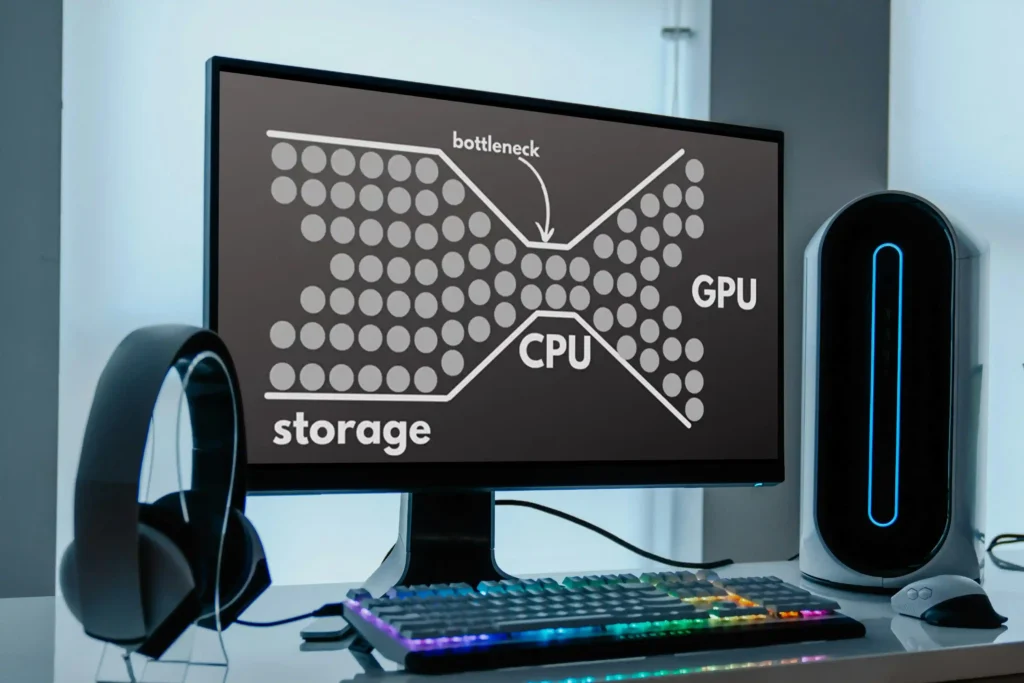
Our gaming and work performance depend upon a balance between the CPU and GPU. But if any one of them is slowed down, it will affect the other one, overall affecting laptop performance. If you are facing this problem and want to know the cause of the problem, then the Bottleneck calculator is the best tool. It completely analyzes your computer and finds the processor and graphics card bottlenecks, which are like traffic stuck at a narrow bridge.You can also read this detailed guide on hardware balance from Intel to learn more about how component mismatch affects performance and how to avoid it.
By analyzing the problem, our calculator helps you make a better upgrade for your CPU or GPU. Moreover, it helps to get smoother performance in games and apps, while avoiding wasting money on the wrong part. Moreover, as this calculator saves processor and graphics card blockages, it is also known as the CPU Bottle Neck Calculator and GPU Bottle Neck. We have discussed them below.

CPU Bottleneck Calculators
This tool can be used if the processor of the laptop is too slow compared to the graphics card.
We have mentioned earlier that if any part is slow, it affects the other ones too. So if the processor does not work well, then the graphics system also slows down, resulting in not receiving data fast.
This results in low FPS, stuttering, and lag. To find out these issues, use our CPU GPU Bottle Neck Checker.
GPU Bottleneck Calculators
The CPU operates the game physics, AI, background processes, and system operations while the GPU handles system graphics.
If the graphics card is not working properly compared to the central processing unit, then it creates a jam, which results in low gaming FPS with poor visual quality.
To solve this issue, you can use the bottle Neck calculator FPS to understand the situation..
Laptop Bottleneck Calculators
This tool first helps you find the limiting factors of hardware and then even helps to fix them. Because if these issues are not handled on time, they can severely affect the system’s performance. Nowadays, when demanding tasks like 4K gaming and video editing require more stability, it’s become more important to keep your system balanced.
If your system is facing a CPU, GPU, RAM, or storage jam, use our laptop bottleneck calculator. It easily spots problems, chooses the right upgrades, and keeps your laptop running smoothly.

What is a Bottleneck?
Before doing anything, you first need to know what the bottleneck is, how it happens, and how it affects our laptop system. We know that laptops work better when the system is balanced between a central processing unit and a display adaptor. If one part of your system is much slower, it creates a blockage, which means it slows down the performance of others. This mismatch means you don’t get the full power of your hardware, which leads to lag, low frame rates, or slower performance.
In simple terms, the bottleneck is the imbalance between your computer parts, like CPU, GPU, RAM, or storage device; if one is off, it holds the rest back. So if you are a gamer or video editor and want to solve this issue, use our System performance analyzer calculator.
How to Use the Bottleneck Calculator?
Using the Hardware compatibility checker calculator is straightforward; you just need to follow the steps given below.
Enter Your Complete System Specifications
To get an accurate result, you need to enter the right information about your current PC hardware.
- CPU: Enter your processor model.
- GPU: Choose your graphics card model.
- RAM: Then select how much system memory your laptop has.
- Storage: Enter your storage type (HDD, SSD, or NVMe).
Define Your Usage Scenario
The next step is to provide the details about how you use the computer, as it influences performance.
- Resolution: First, you need to enter the screen resolution you play at (1080p, 1440p, or 4K).
- Game: Pick the game you want to test performance for.
- Graphics Settings: Select your in-game quality level (Low, Medium, High, Ultra).
- Graphics Settings: Select your in-game quality level (Low, Medium, High, Ultra).
- Purpose: Then you need to define your main PC use (Gaming, Streaming, Video Editing, etc.)..
Test a Hypothetical Upgrade – Optional
- Processing Unit Upgrade: If you doubt your processor is the reason for the system stoppage, try selecting a new processor to see how it performs with your current GPU.
- Display Adopter Upgrade: If you think your graphics card is performing slowly, choose a new GPU to test alongside your current Central Unit.
Analyze Your System
After providing all the essential details, press the bold button “ANALYZE” given above. The Calculator will process everything and give you an accurate system error report.
How to Interpret Bottleneck Calculator Results?
This calculator closely understands the laptop and game settings you provide, so the result it provides must be more accurate and specific than a simple percentage. Here you will know how to interpret the results.

Game-Specific FPS and Bottleneck
This analysis will show you the estimated Frames Per Second for your chosen game and identify whether your CPU or GPU is the limiting factor based on your selected resolution and graphics settings.
Central Processing Unit-Bound vs. Graphics Card-Bound
If the result tells that your laptop is facing a Processing Unit jam, it means the process is giving poor performance and is not well-suited to the game. This slowdown also affects the Visual processing unit, preventing it from reaching its full potential.
If the result tells us about a GPU bottle Neck, it means the graphics card is facing an issue and limiting the overall system performance.
What If” Upgrade Analysis
If you give the potential upgrade testing feature, the results will compare your current performance with the estimated performance of the new component. This helps you make an informed purchase decision.

Interpreting the Example Results
Current System (Ryzen 5 3600 + RTX 3070): The result might show that at 1080p Ultra settings, your system works on 120 FPS, but with a Central Unit blockage of 20%. This means the Ryzen 5 3600 is the primary limiting factor and prevents the RTX 3070 from reaching its full potential.
Upgraded System (Ryzen 7 5800X + RTX 3070): After upgrading the processor, the FPS could increase to 155 FPS, with the Graphics card now shifting to a bottle-neck of 4%. This means that the stronger system processor allows it to give great performance.

Practical Example: A Walkthrough
Let’s move forward with an example.
Your System and Scenario:
Your PC:
Central Processing Unit: Intel Core i5-10400F
Graphics Processing Unit: NVIDIA GeForce GTX 1660 Super
Random Access Memory: 8GB
Storage: HDD
Filling Out the Calculator:
Central processor: Select “Intel Core i5-10400F”.
Graphics Adoptor: Select “NVIDIA GeForce GTX 1660 Super”.
RAM: Select “8GB”.
Storage: Select “HDD”.
Resolution: Select “1920×1080 (1080p)”.
Game: Select “Fortnite”.
Graphics Settings: Select “Medium”.
Refresh Rate: Select “60Hz”.
Purpose: Select “Gaming”.
Your Goal:
Game: Fortnite
Resolution: 1080p (1920×1080)
Graphics Settings: Medium
Refresh Rate: 60Hz
Purpose: Gaming
After entering all the information, you can click the “ANALYZE” button, and you will get the expected performance.
- WHAT IF: TEST RAM UPGRADE: Select “16GB”.
- WHAT IF: TEST STORAGE UPGRADE: Select “NVMe SSD”.

Core Features of Our PC Bottleneck Calculator
Here we have provided a detailed insight into the features it provides to its users, so let’s go through them one by one.

User-Friendly Design
Using this calculator is straightforward; you can easily enter the system details. After getting the information, this tool analyzes the data and provides an accurate result.

Accurate
The Bottleneck Calculator uses real-world benchmarks and reliable performance data to provide you with accurate system insight. This gives you a clear idea of where stoppages might occur in your system.

Detailed Performance Insights
After analyzing everything, this tool gives you a straightforward score (0–100) that shows if your system has a bottleneck. You can easily understand which component is limiting system performance and requires changes.

Hardware Compatibility Analysis
The bottle-neck calculator checks if your system’s CPU and GPU work well together. It ensures that they’re performing right with maximum efficiency. This helps you avoid incompatible components that can cause performance declines.
Personalized Upgrade Recommendations
Besides analyzing the provided data, this tool also suggests the most effective hardware upgrades. This way, you can not only spend wisely but also improve speed and eliminate blockages for smoother and higher efficiency performance.

Expert Recommendations
This tool gives reliable advice to improve system performance. These recommendations are based on your provided hardware information. This helps you make the best upgrade choices for computer parts.
Benefits of Using a Bottleneck Calculator 2026
The Bottle-neck Calculator offers so many features besides solving the poor system performance. Here we have mentioned all the advantages you will get by using this tool.
Saves Money on Upgrades
We know that upgrading the PC can be costly, but it’s easy to replace the wrong parts. First, we need to know which part is causing the issues. For this, you can use the Bottleneck calculator. This will tell whether your Central system or Graphics System is the real cause of performance issues. With this info, you only upgrade what’s necessary, saving the money while maximizing performance for your budget.
Helps in Future PC Upgrades
It’s important to know about the compatible parts to upgrade the PC. So, our Bottleneck Calculator PC checks if your Processing Unit and Visual Processing Unit will work well before buying them. This prevents the mismatched components, resulting in saving money.
Optimizes PC for Different Tasks
Besides gaming, your computer may be used for editing, rendering, or multitasking. This calculator, if your system has enough capacity to perform the main task, can upgrade the settings only when needed.
Avoids Performance Issues in High-Resolution Gaming
We know that when we play games at 1440p or 4k resolution, it puts more load on the GPU, and 1080p often leans heavily on the Processing Unit. A bottleneck calculator helps you to balance the settings to get smoother performance without frame drops or lag at your preferred resolution.
Improves Gaming Performance
It’s so frustrating to face lagging or stuttering during gameplay. This is where this tool helps you by identifying whether your Processor or Graphics Adaptor is struggling. So you can easily adjust settings like resolution or textures for smoother performance. Moreover, with this accuracy, you can avoid unnecessary hardware purchases.
What are Bottlenecks in PC Systems?
Above, we have discussed what the bottleneck is, but now we are going to know about its different variations that you might face. Below, we have covered them all, along with how they are.
CPU Bottleneck
The main reason for this issue is the low performance of the processor as compared to the graphics card. This is a very common issue you might face while gaming or completing tasks that require high processing power. The other most frustrating thing is that when the CPU is slow, it automatically affects the graphics adapter, slowing down its performance. These things overall slow down the PC system, resulting in lower frame rates and stuttering.
Signs of a CPU bottleneck
GPU Bottleneck
This issue happens when the GPU performance is too slow compared to the Central system. This issue commonly happens while playing high-resolution games or editing 3D models. If the graphics card is not working, it will automatically slow down the Processor.

Signs of a GPU bottleneck
- The most common sign is high GPU usage (above 90%), while the CPU is running slowly.
- Even at high settings, you have low FPS issues, which means there is a GPU bottleneck.
- Slow performance and lag while editing.
- To fix this issue, you need to change the GPU to a faster one to balance it with a CPU that is strong enough.
- While playing the game, you must lower the graphic settings like resolution, textures, and shadows
- To enhance the performance, enable the DLSS or FSR options.
RAM Bottleneck
The main reason behind this is that your system doesn’t have enough memory to perform tasks efficiently. When there is no free space in the RAM, your PC has to rely on the low storage, which causes lag, stuttering, and delays in tasks.
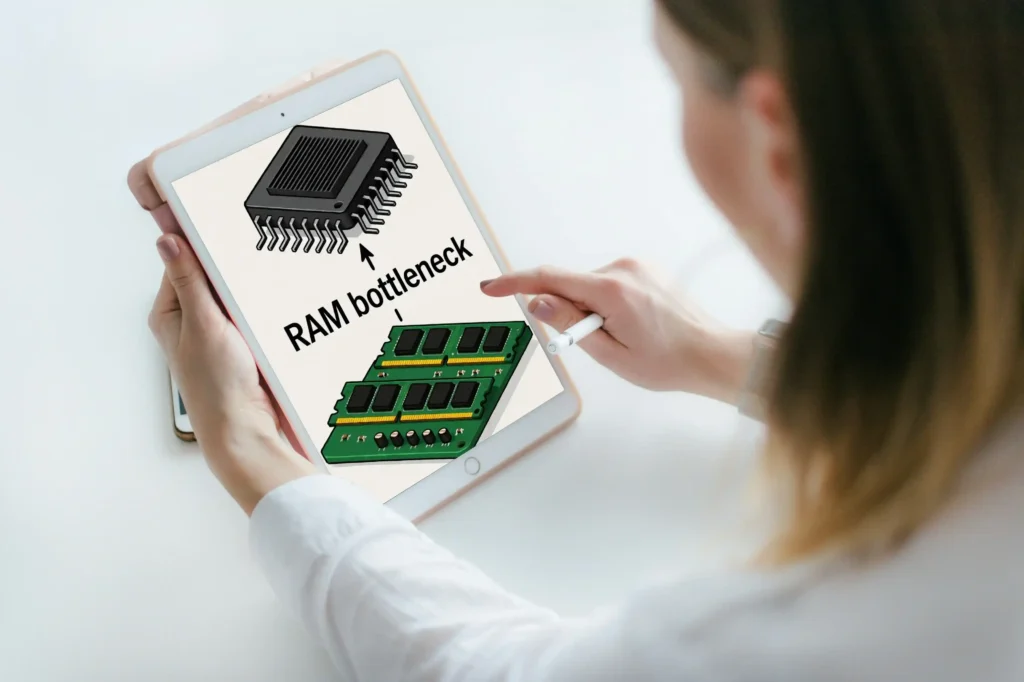
Signs of a RAM bottleneck
STORAGE Bottleneck
It occurs due to a slow hard drive or SSD, which limits your system’s performance. It affects so many things at a time, including the boot speed, loading times, and file access. Even if your system has a strong Central Processor and Graphics Card, a slow drive affects the entire system.
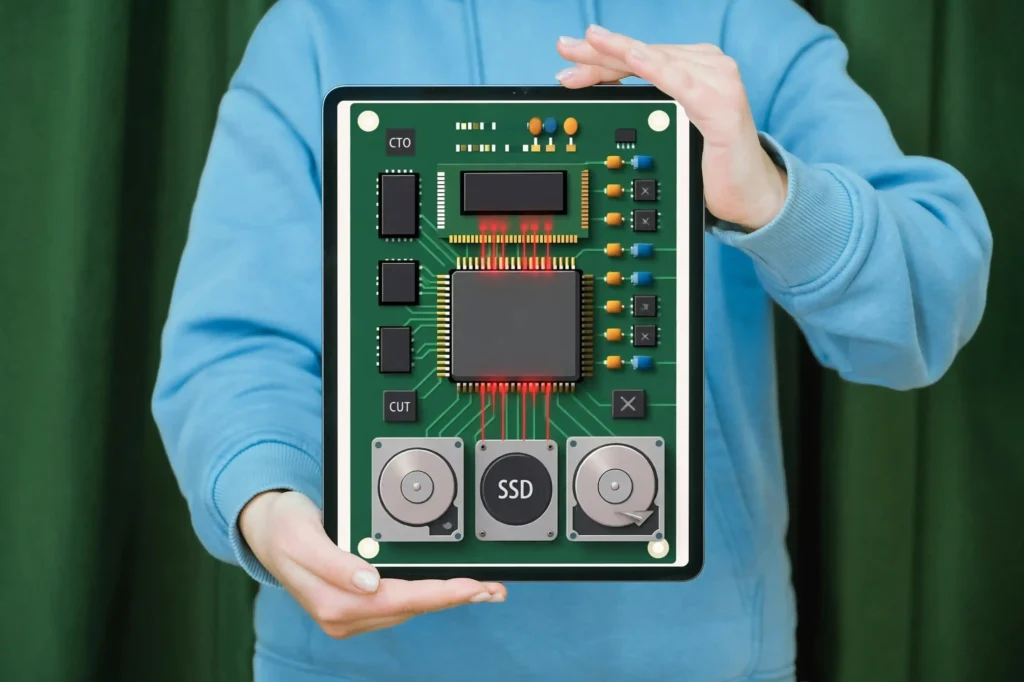
Signs of a Storage bottleneck
- The most common sign of a storage stoppage is when Windows takes a long time to start up.
- You get to face slow loading in games or applications.
- You face freezes or delays when opening large files.
- You need to upgrade the system from HDD to an SSD for faster load times.
- To get greater speed in the modern system, use an NVMe SSD.
- To maintain smooth performance, keep at least 20% of your drive’s space free.
How to Avoid Bottlenecks
Here we have provided some ways to avoid system jams. By following these steps, you can get the full performance of the system.
- You have to make sure that your CPU and GPU are compatible with each other.
- Always update your drivers and keep full maintenance of the hardware.
- When you need to upgrade the system components.
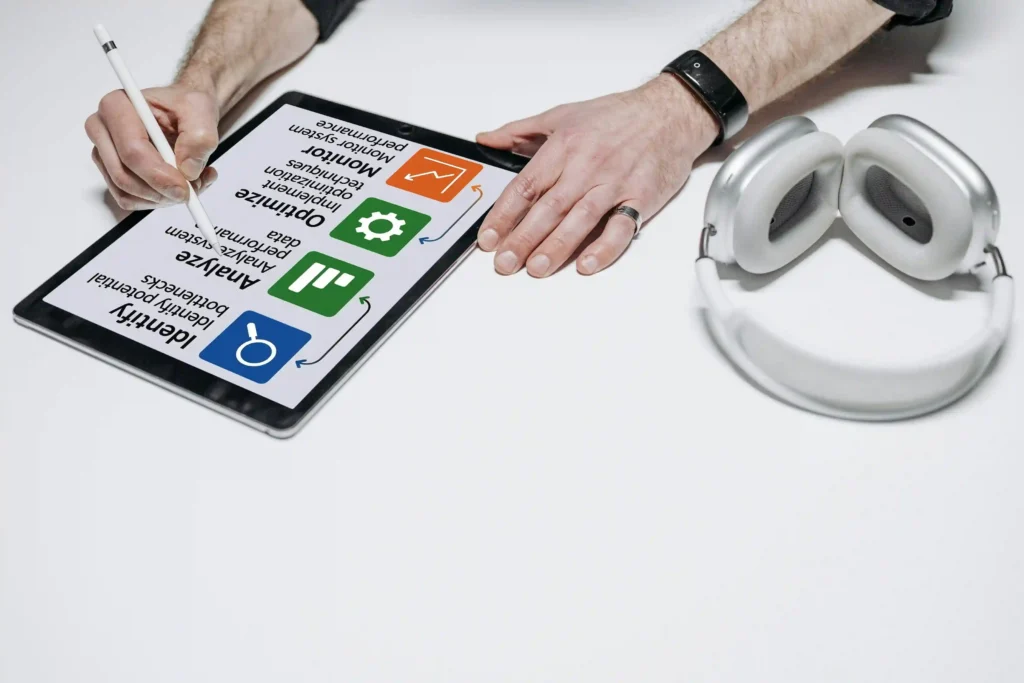
Factors Affecting Bottleneck Performance
Here, we have discussed the factors that play a key role in determining how the jam affects the system performance. Here you will get some of the most common factors.
| CPU and GPU Compatibility | If your laptop processor is slower than the graphics card, it will not transfer the data fast enough, which results in a CPU bottleneck. Similarly, if the GPU has limited performance, it will not process the graphics quickly, and will cause a GPU bottleneck. That’s why the balance between the processor and graphics card is key to getting smooth system performance. |
| Screen Resolution and Refresh Rate | We know that the higher resolution, like 4K, puts pressure on the GPU, while on the other side, the lower resolution, such as 1080p, leans more on the system’s CPU. The other reason for bottleneck occurrence is when the monitor has a high refresh rate (e.g., 144 Hz), but the GPU can’t deliver enough frames. |
| Overclocking and Cooling | Optimizing your CPU, GPU, or RAM results in enhanced system performance but also causes more heat. To prevent thermal throttling, you need a proper cooling solution, such as advanced fans or liquid cooling, which makes the system stable. |
| Storage Type and Speed | The main reason for slow performance can also be a traditional HDD, because it slows down data loading into memory. To upgrade the system, you need to use an SSP because it significantly reduces the data load time, resulting in a more responsive system. |
| Background Processes and Software | The reason behind the consumption of CPU, RAM, and storage resources is the unneeded app running in the background. The best way to reduce bottlenecks is to close the unnecessary programs and disable startup apps. |
| RAM Speed and Capacity | If your laptop has insufficient or slow RAM, it can reduce the speed of data transfer between the CPU and other parts of the system. This results in lagging or stuttering in the game and slowing overall performance. |
CPU and GPU Bottleneck Scenarios
Everyone faces different issues related to the CPU, GPU, RAM, and storage parts of the PC. Below, we have mentioned every single scenario you might face resulting in bottlenecks.
Low CPU usage and low GPU usage
The workload isn’t demanding when both the Processor and GPU usage of the system remain low. This casualty may happen in lightweight games or low-detail settings. Because the system doesn’t have enough resources to handle tasks smoothly.
Low CPU usage and maximum GPU usage
In this case, if the Processing Unit is performing low, but on the other hand, the GPU is running at full capacity. It indicates that the system gets to experience a graphics-intensive workload, and the graphics card is the main limiting factor here. So, to improve the performance, upgrade the GPU or lower graphics settings.
High CPU usage and maximum GPU usage
Here, you get to see that both the Processing Unit and Graphics System are working hard. But it seems that the GPU is pushed closer to its limits. The system is generally balanced, with only a slight GPU bottleneck based on the workload.
Maximum CPU usage and low GPU usage
Sometimes it happens that the Processor is maxed out, but the GPU is underperforming; here, the processor becomes the bottleneck. This issue is commonly seen in CPU-heavy applications or games that are poorly optimized. To get a better performance, a stronger Processing System will help a lot in this scenario.
Maximum CPU usage and maximum GPU usage
It only happens when both the Central Processing Unit and Graphics Processing Unit are in balance and fully utilized. It means your system is performing at maximum capacity. It only happens in highly demanding games or a heavy workload. Here, to prevent thermal throttling, it’s important to have proper cooling and airflow.
Maximum CPU usage and high GPU usage
Here, it seems like both parts are heavily engaged, such as the Processor giving 100% usage and the GPU close behind. It indicates a nearly balanced system load, but the process is slightly limiting the performance.
Recommended Hardware Configuration for Better System Performance
System performance depends on a high-quality hardware setup. Whether you are an editor, graphic designer, or gamer, you can follow the configurations below to enhance your system performance.
Budget Configuration
- CPU: AMD Ryzen 5 5600
- GPU: NVIDIA RTX 3060
- Memory: 16GB DDR4 3200MHz
- Storage: 512GB NVMe SSD
Mid-range Configuration for Smooth Gaming
- CPU: AMD Ryzen 7 5800X
- GPU: NVIDIA RTX 4070
- Memory: 32GB DDR5 5600MHz
- Storage: 1TB NVMe SSD
High-end Configuration for 4K Ultimate Experience
- CPU: Intel i9-13900
- GPU: NVIDIA RTX 4090
- Memory: 64GB DDR5 6000MHz
- Storage: 2TB NVMe SSD
Tips to Troubleshoot Bottlenecking Issues
Here we have provided some tips on how you can easily solve the Bottlenecks issues and enhance your system’s performance. So let’s go through them one by one.
Adjust In-Game Settings
To avoid the lags or stuttering, change your graphics settings; doing this makes a great difference. There are certain things you need to do, like lowering resolution, texture quality, or shadows, to reduce the GPU load. Raising the resolution can sometimes shift the pressure away from the Processing System. Look how adjusting the settings helps in balancing the performance between both components.
Close Background Applications
We have always had feelings that after some time, our system starts to slow down. The main reason for this is that too many apps running in the background hog the Processor and RAM resources, resulting in system slowdown. To improve the performance, you can use the task manager to free up the system resources.
Overclock Your CPU or GPU
It’s common that suddenly the CPU and GPU aren’t performing at their full potential. To prevent this, you do safe overclocking to give it a performance boost. Moreover, nowadays, the hardware comes with built-in tools to overclock, but it’s important to monitor the temperature to avoid overheating.
Upgrade Your RAM
Your system doesn’t perform due to a lack of RAM. To improve processes like gaming, editing, and multitasking, you need to upgrade the RAM to at least 16 GB or more for a heavy workload. Moreover, the faster RAM will also help the CPU handle data more efficiently.
Use an SSD for Faster Storage
The reason behind the application loading and slow gaming can also be a traditional HDD. To avoid these problems, you need to switch to an SSD. This will dramatically reduce the load time, speed up the responsiveness, and help your CPU access the data more quickly.
Improve Cooling and Airflow
Your system can face thermal throttling because of overheating, resulting in low performance. To avoid this issue, make sure to keep your PC clean and ensure the proper flow of air. These things help to maintain the system and get stable performance during the demanding tasks.
Frequently Asked Questions
Wrapping Up
The bottleneck calculator is used to get information about your PC system. So, you can easily know the issues that affect the performance. It verifies all the provided details and analyzes the balance between the system components like CPU, GPU, RAM, and storage. It provides accurate results that help in making better upgrading decisions. This tool ensures smooth PC performance and upgrades the system efficiency for free. Moreover, it has an easy-to-use interface and gives effective results, providing ways to maximize your hardware potential. You just need to enter the accurate details of your PC.